ScoreCastPro
Support Center
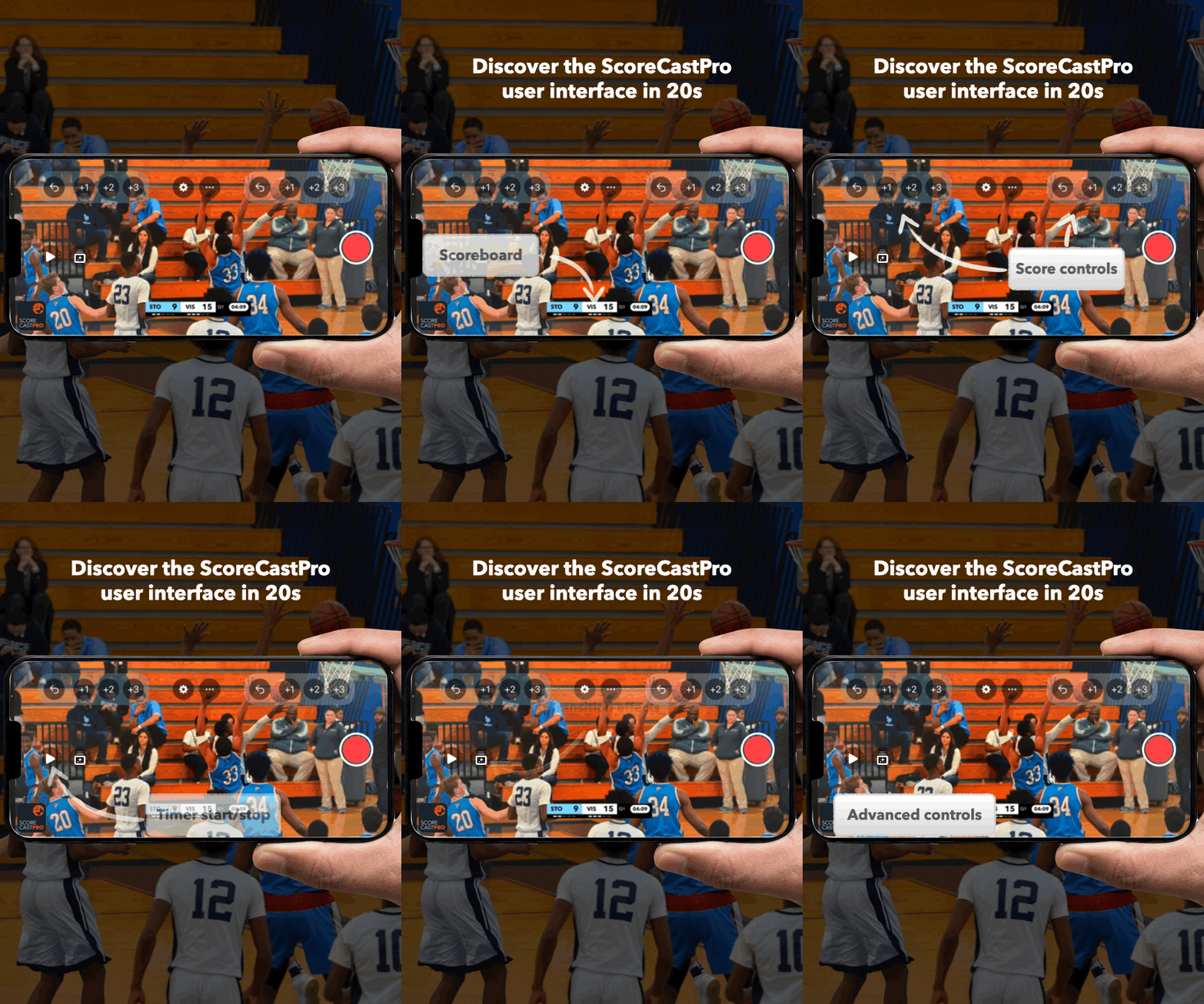
The unique ScoreCastPro LiveUI
ScoreCastPro was designed to be incredibly simple to use during games. Every control you need — score, timer, undo — is one tap away, so you can stay focused on the action, not on the app.
Need help?
Don't worry, we got you. Here are some answers for your questions.
To start recording your match with ScoreCastPro:
Open the app and tap the ⚙️ Settings icon (gear) and select "Match" or tap on the scoreboard to configure your game.
Select your sport (Football, Basketball, etc.).
Choose a scoreboard template (Pro users get unlimited templates!).
Enter the team names, upload logos (optional), and set jersey colors.
Close the settings page – you’re ready to start!
Tap the 🎥 Record button to begin recording your match.
Tip: For best results, test your setup before the match starts!
Your recorded videos are saved in the ScoreCastPro/Recordings folder on your iPhone or iPad by default.
If you enabled the 'Save to Photos' option in Settings > Recording, they will also appear in your Photos app.
Tip: Use the Files app to access the ScoreCastPro folder directly.
ScoreCastPro is compatible with:
iPhone: iPhone 11 and later (iPhone 11, 12, 13, 14, 15, 16, SE 2nd/3rd/4th gen, 17).
iPad: iPad (5th gen and later), iPad Air (3rd gen and later), iPad Mini (5th gen and later), iPad Pro (all models).
iOS Version: Requires iOS 26 or later for full functionality.
For best performance, we recommend using the latest iOS version available for your device.
To stream live to YouTube, Twitch, or Kick:
Go to ⚙️ Settings > Streaming.
Tap Connect Account and log in to your YouTube/Twitch account.
You can also select any RTMP platform (such as Instagram, Facebook, Kick etc.) by entering the URL and the streaming key.
Select your preferred streaming quality (High, Medium or Low).
As soon as you start recording your game, your match will go live instantly!
Note: Free users can stream in Basic (720p) quality. Upgrade to Pro for HD, 60 FPS, and 4K!
To adjust the scoreboard position:
Tap on the Scoreboard and scroll to the Position option
Tap Position and choose from the available options:
Top Left
Top Center
Top Right
Bottom Left
Bottom Center
Bottom Right
Pro Tip: Test different positions before your match to ensure the best visibility for your audience! Pro users can also adjust margins.
Customizing your scoreboard is easy:
In ⚙️ Settings/Match, select your sport.
Tap Scoreboard Template and choose from our library (Pro users get unlimited templates).
Enter team names, upload logos (optional), and pick jersey colors.
For Pro users: Add sponsor logos and enable animations and transition in the advanced settings.
Pro Tip: For better results: use logo with transparent background
Yes! ScoreCastPro works offline for recording matches:
Go to "Settings" -> "Streaming" and uncheck the Streaming option at the top
Your video will be saved locally on your device.
No data transmitted, 100% offline mode
Note: Only live streaming requires an internet connection.
If your stream is lagging:
Lower the streaming quality in ⚙️ Settings > Streaming Quality (try "Medium" mode).
Close other apps running in the background.
Switch to a stronger Wi-Fi network or use mobile data (4G/5G).
Restart your device if the problem continues.
For best results, use High or Medium quality if your connection is weak.
In addition of the scoreboard, you may need to display logos in your video.
Go to "Settings" -> "Match" -> "Transitions & logo" -> "Logo"
Then select up to 3 logo images
Finally, select their position in the screen (Top left corner, top right etc...) and activate them with their respective checkbox. If the selected position is the same than the scoreboard, the logo won't be displayed - The scoreboard always has the priority.
Pro tip: For best results, use PNG file with transparency.
ScoreCastPro’s Remote Control mode lets you control your stream from a second iPhone or iPad. Here’s how to set it up:
On the device filming the match (Main Device):
Open ScoreCastPro and go to Settings > Remote Control.
Enable Remote Control by checking the box.
A QR code will appear on the screen.
On the device you want to use as a remote (Controller Device):
Open the ScoreCastPro app.
Point the camera at the QR code displayed on the Main Device.
The Controller Device will automatically switch to Remote Control mode and connect to the Main Device.
Control your stream:
Use the Controller Device to:
Start/stop the timer.
Start/stop recording.
Update the score (+1, -1).
Trigger transitions.
The Main Device will reflect all changes in real-time.
Important Notes: This is a Pro feature. Further more, Both devices must be connected on the internet or have Bluetooth enabled for the best performance. The device you are using as a remote must have ScoreCastPro installed but Pro subscription is not mandatory.
Auto Score Sync uses AI to read the physical scoreboard at your venue and automatically update the score in ScoreCastPro — no manual entry needed.
How it works:
Activate the remote mode (see above)
Point your camera so the physical scoreboard is visible in frame.
A green frame will appear around the scoreboard once it's detected. You can tap the green pencil icon to adjust the detection area.
You're always in control: tap any score command at any time to manually override the score if needed.
In the remote menu, you can select which part of the score control is assisted by AI
Tip: Auto Score Sync is AI-assisted, human-controlled — it's currently in Pro Beta for Basketball. Make sure the scoreboard is well lit and not obstructed for best detection.
After every match, ScoreCastPro automatically detects the key moments of your game and generates a highlight reel — no editing required.
Highlights are generated as soon as you stop recording.
Free users get up to 5 automatic highlights per match; Pro users get up to 25.
Individual 10–20 second clips are also created automatically from your best moments — ready to share in one tap on YouTube, Instagram, or TikTok.
You can find the highlight video and the individual clips in the general menu/previous games.
Tip: Highlights are generated only if the local recording is activated. Highlights are saved in the same ScoreCastPro/Recordings folder as your full match video.
The Interactive Timeline logs every key event of your match — every goal, basket, or try — as it happens.
Go to the Settings and select "Previous games".
Select one of your games.
Tap any event on the timeline to jump instantly to that exact moment in your recorded video.
Great for quickly finding a specific play without scrubbing through the full match.
Note: Interactive Timeline is a Pro feature.
Stop Timer On Whistle listens for the referee's whistle during your match and automatically pauses the game clock — just like a real broadcast.
Enable it in Settings > Match > Stop Timer On Whistle, or in the advanced controls during the game.
3 levels of sensitivity are proposed: Low, Normal and High. Adjust according your current conditions
Works best with a clear audio pickup of the whistle — avoid filming from too far behind loud crowd noise.
Note: currently in Pro Beta for Basketball.
Video tutorials
Get started
New to ScoreCastPro? This quick tutorial walks you through the essential steps to set up your first live stream or recording. In just a few minutes, you’ll learn how to:
Select your sport and customize your scoreboard.
Add team names, logos, and jersey colors for a professional look.
Get ready to start recording or streaming your match.
Perfect for beginners and first-time users! Watch now and start broadcasting like a pro.
Record your game
Ready to take control of your live stream? This tutorial shows you how to:
Use the scoreboard controller to update scores, periods, and timers.
Start recording and manage transitions (Pro feature).
Launch your live stream on YouTube, Twitch with ease.
Ideal for users who want to manage their match in real-time. Watch now and become a streaming expert!
CONTACT
Get in touch
We try our best to answer as soon as we receive your message, but expect a 24-48 hours delay maximum.